Find the person
Search by name or ID number. Somebody who is not in the system yet can be added on the spot with a name and a type, and the rest filled in later.

CardOffice is the platform behind every card CardOffice issues. It takes a cardholder from a photograph on their phone to a printed, encoded, registered credential, and to a digital ID in their wallet, without anybody re-keying a name.
Add it to the card office you already run, or make it the whole card office for your business. It works in the browser on a desktop, an iPad or a phone, with nothing for your staff to install and no server to set up.

Eight screens cover the whole workflow, from first sign-in to the month-end report. Each one is built to be clear at a glance, with the next step in view. Select a screen, then enlarge it to see the detail.
Screenshots are taken from the live platform using a fictional institution. All portraits are stock photographs of models, not real cardholder photos.
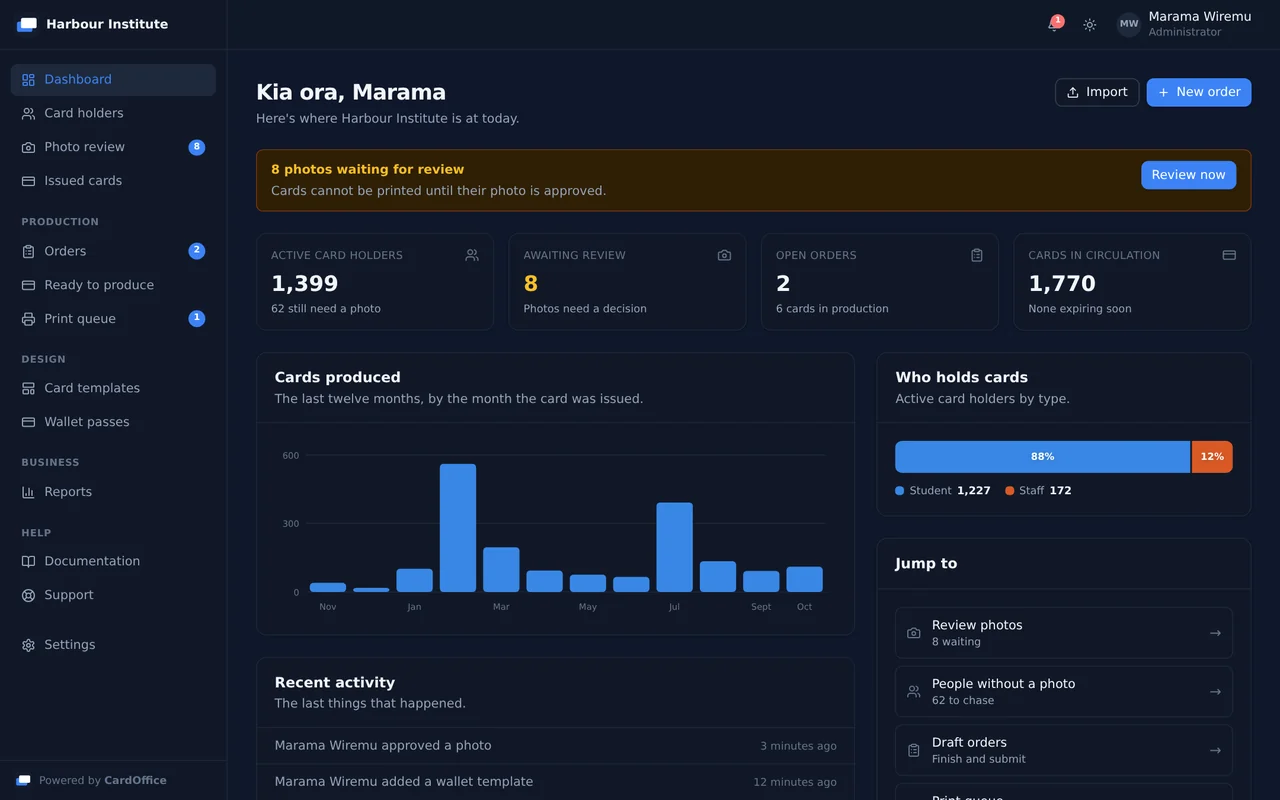
The first screen is a to-do list, not a menu. Photographs waiting for a decision, people still without a photograph, orders in production and cards in circulation are all counted, and each count is a link to the place where you deal with it.
On this screen
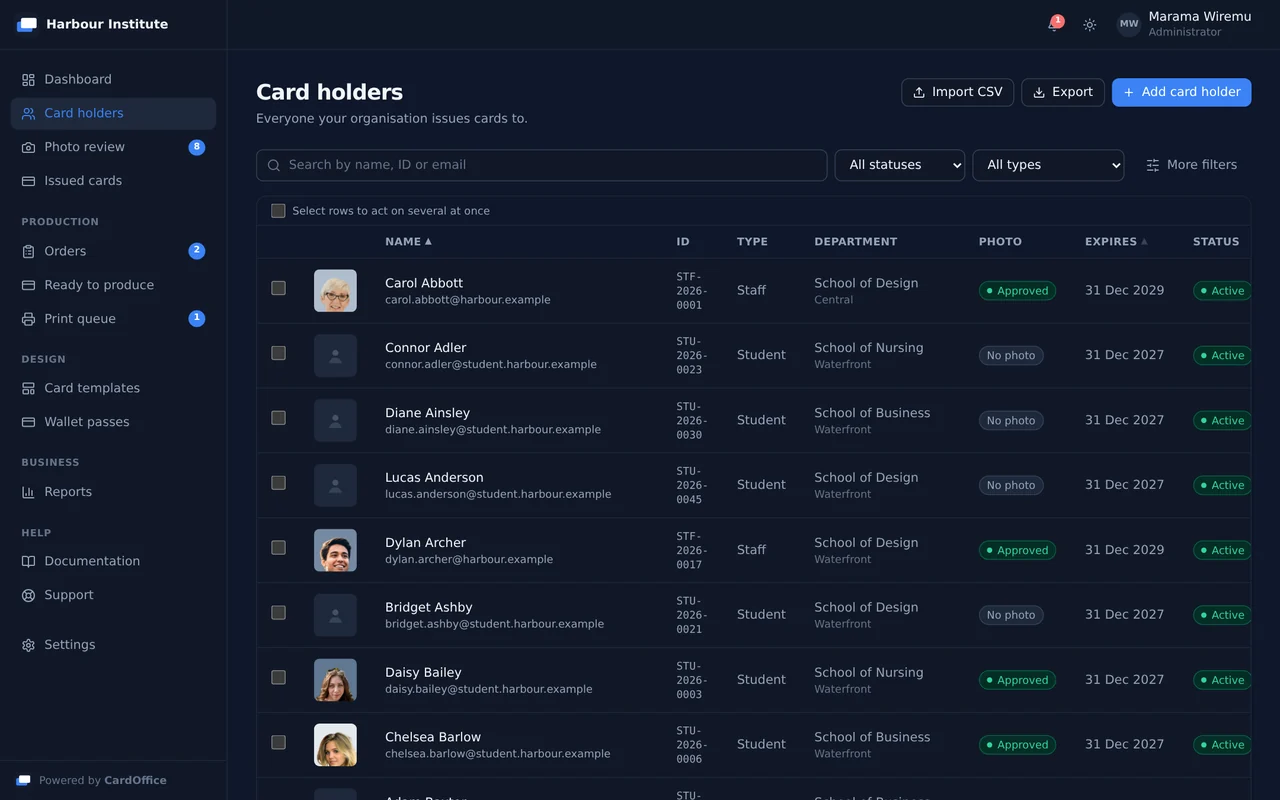
Every card, photograph, order and digital pass hangs off a single cardholder record. A student who loses a card in first year and graduates in their fourth has one record, one history and one verification trail, not four unrelated print jobs.
On this screen
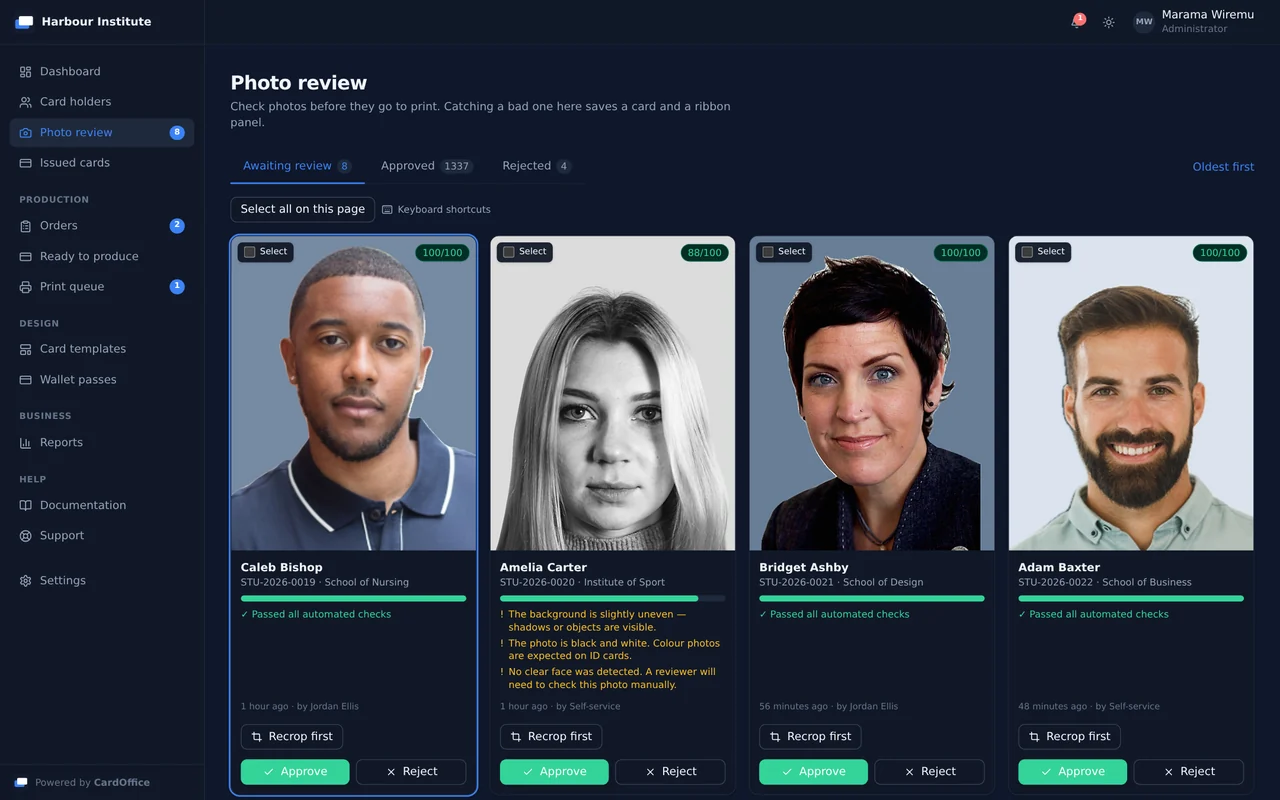
Photo collection is where card projects stall, so there are two ways in. Photograph people at the counter the way a traditional card office does, with a camera or a webcam. Or send an emailed photo invitation and cardholders upload from their own phone, with no queue and no photo day, then operators approve each one. Either way, every image is screened automatically against an ICAO 9303 / ISO portrait model before it reaches your review queue.
On this screen
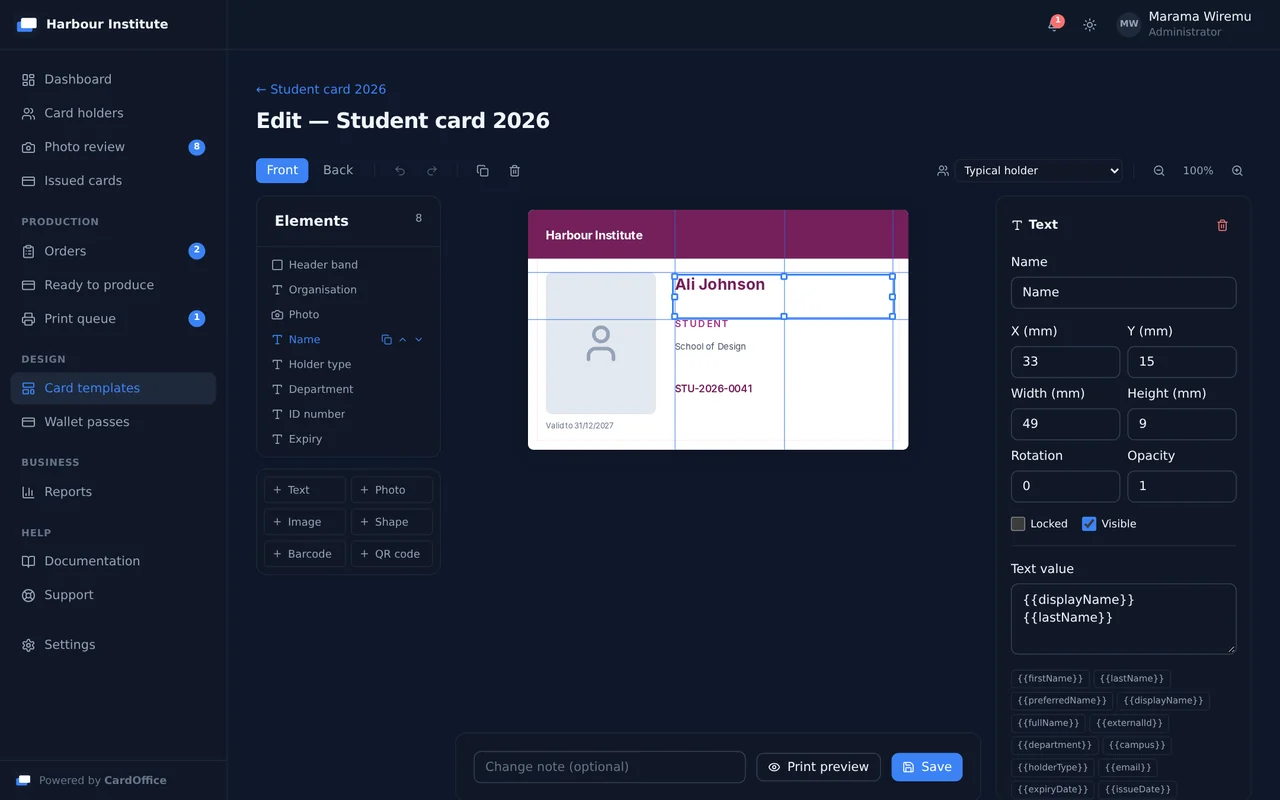
Build card artwork in the browser and bind fields to cardholder data, so the same design produces a correct card for every person. When an order is submitted the template version is locked, which means a card reprinted in two years comes out identical to the one it replaces.
On this screen
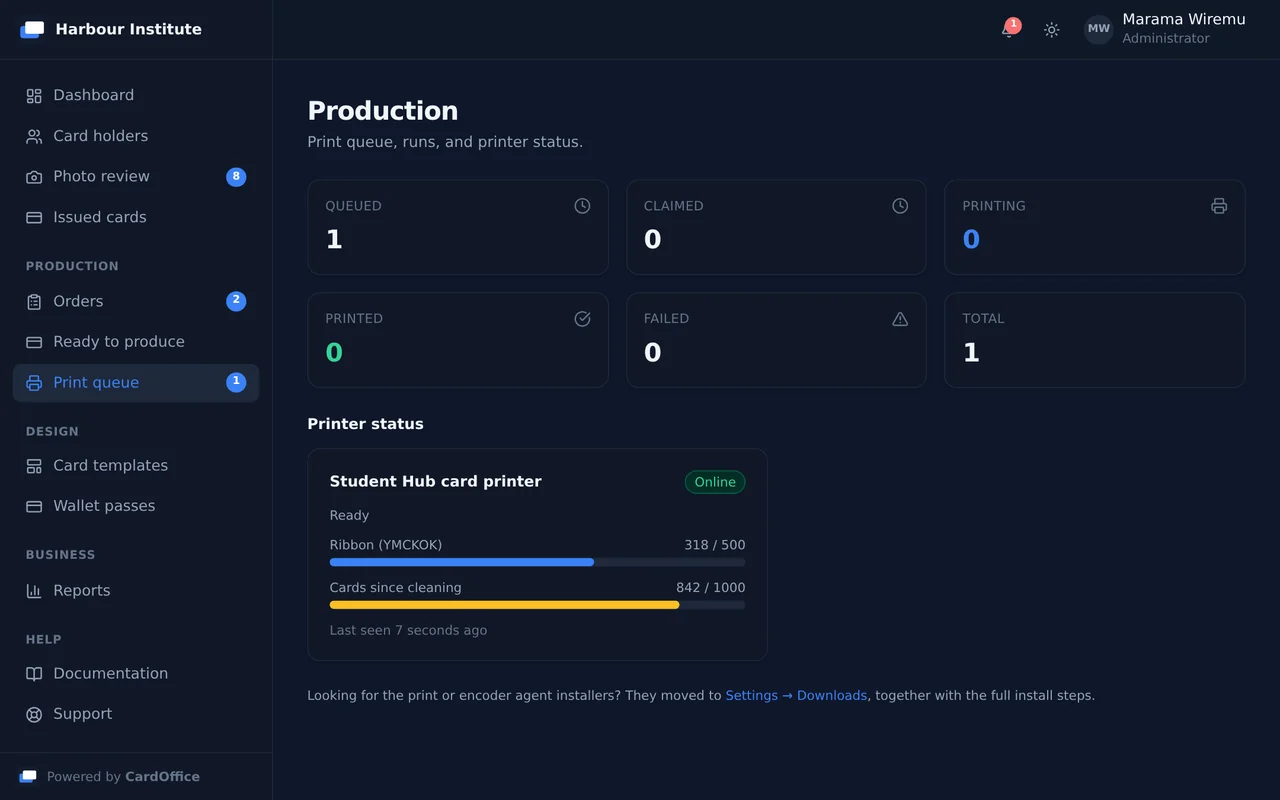
Release a print run and the print agent beside the card printer claims the work, prints it, and reports back. Cards are produced in batches or one at a time at a counter, and the platform tracks ribbon, card stock and cleaning intervals as it goes.
On this screen
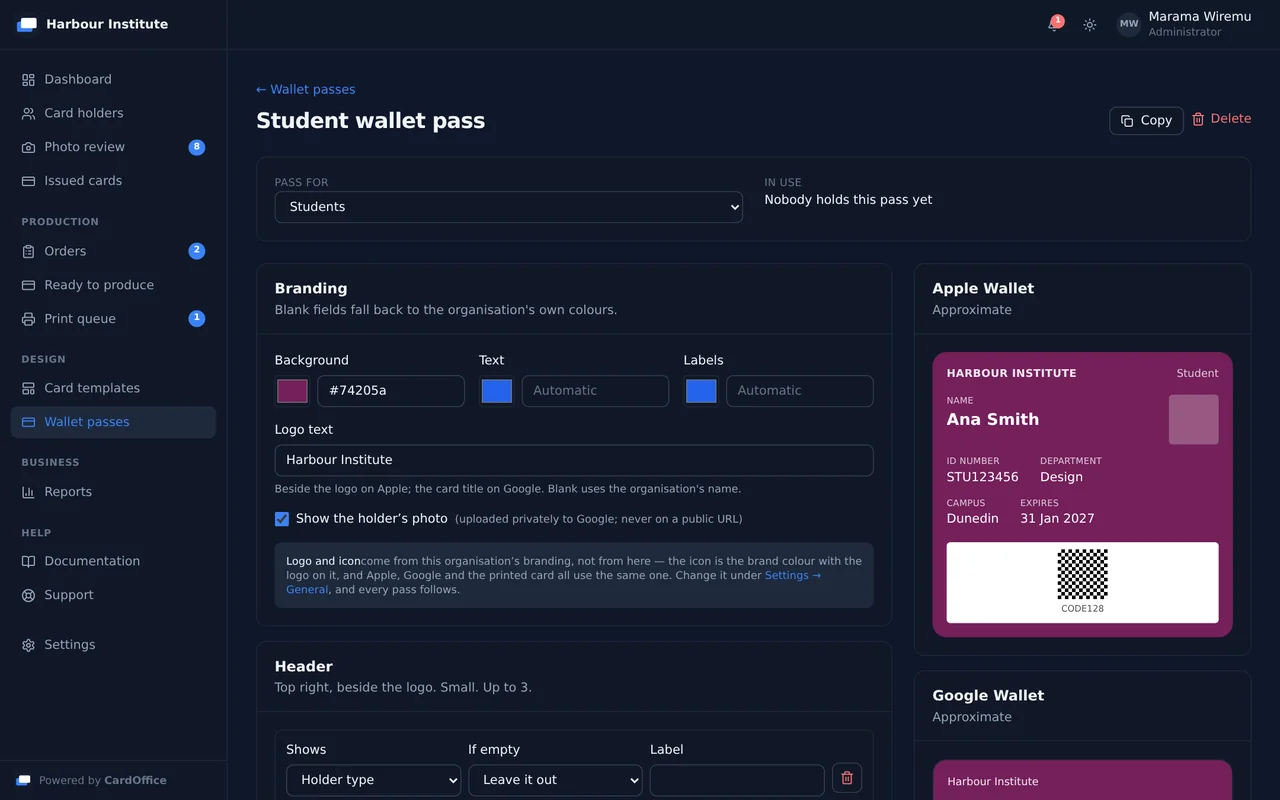
Issue a digital ID to Apple Wallet and Google Wallet carrying the same serial number and verification code as the printed card. It is not a second credential; it is the same one, in another form, revocable on its own or together with the plastic.
On this screen
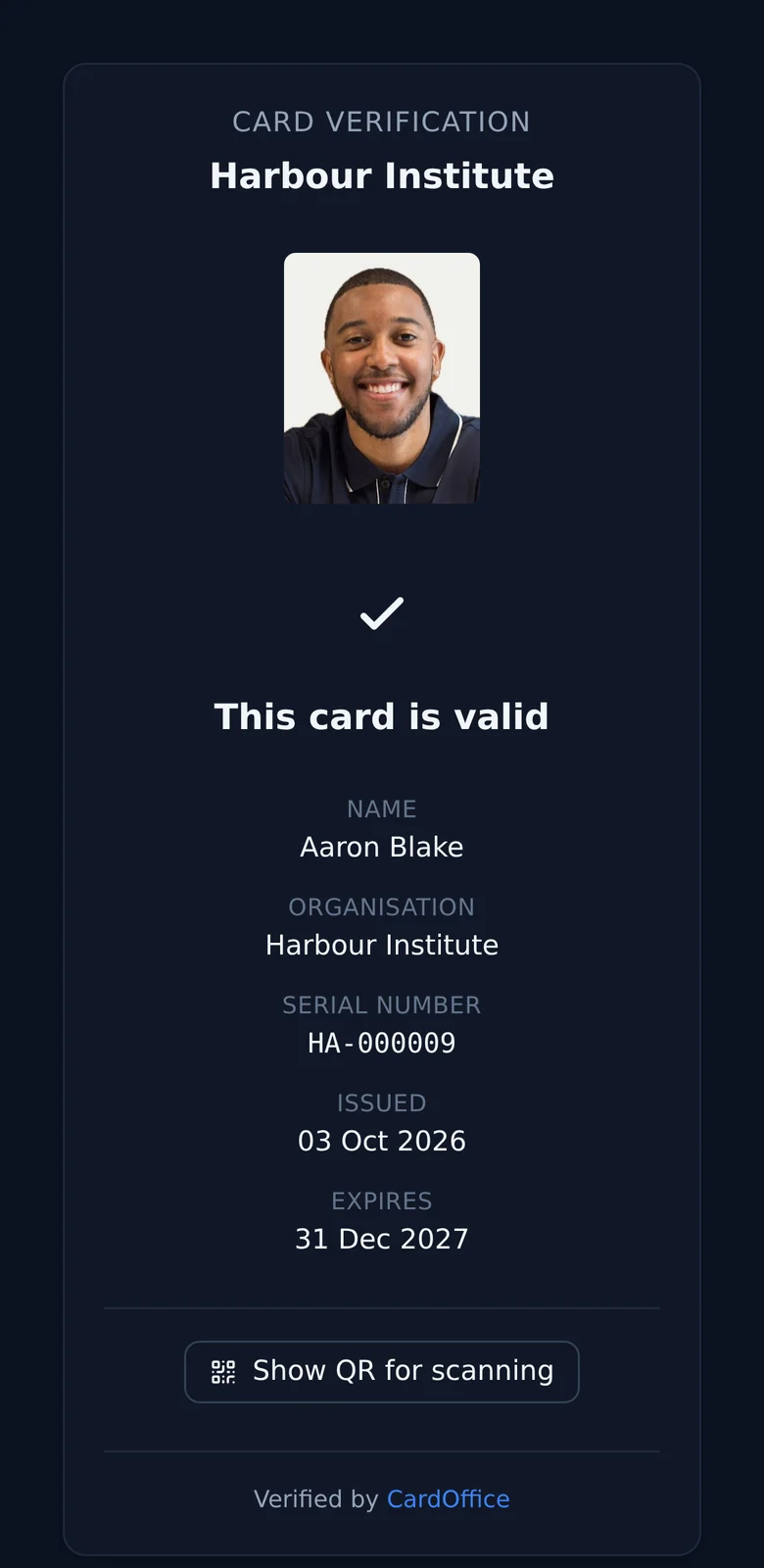
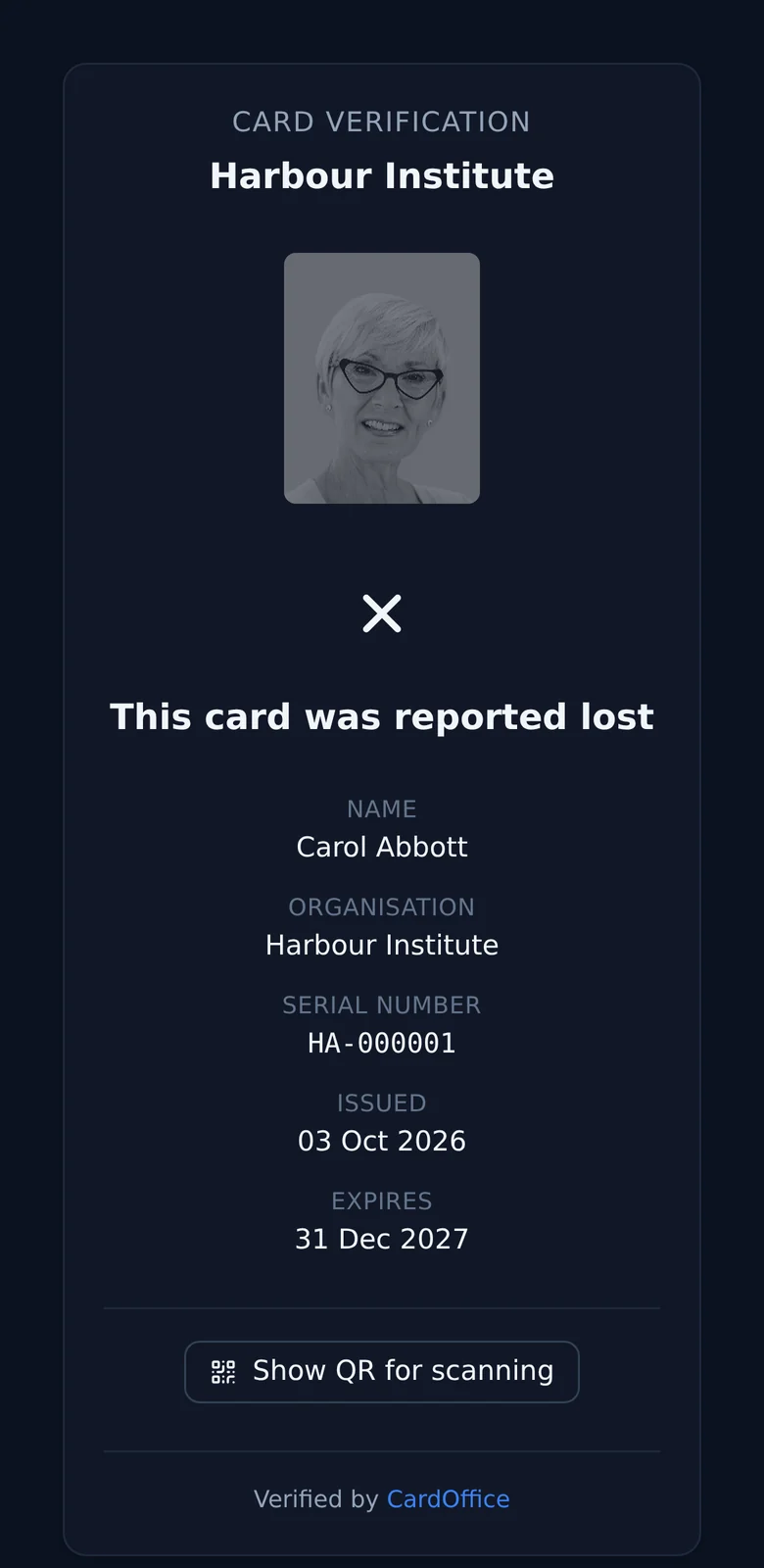
Every issued card carries a QR code that resolves to a public verification page. Anyone checking a card at a door, a library desk or a licensed premises gets a plain answer without needing an account or an app.
On this screen
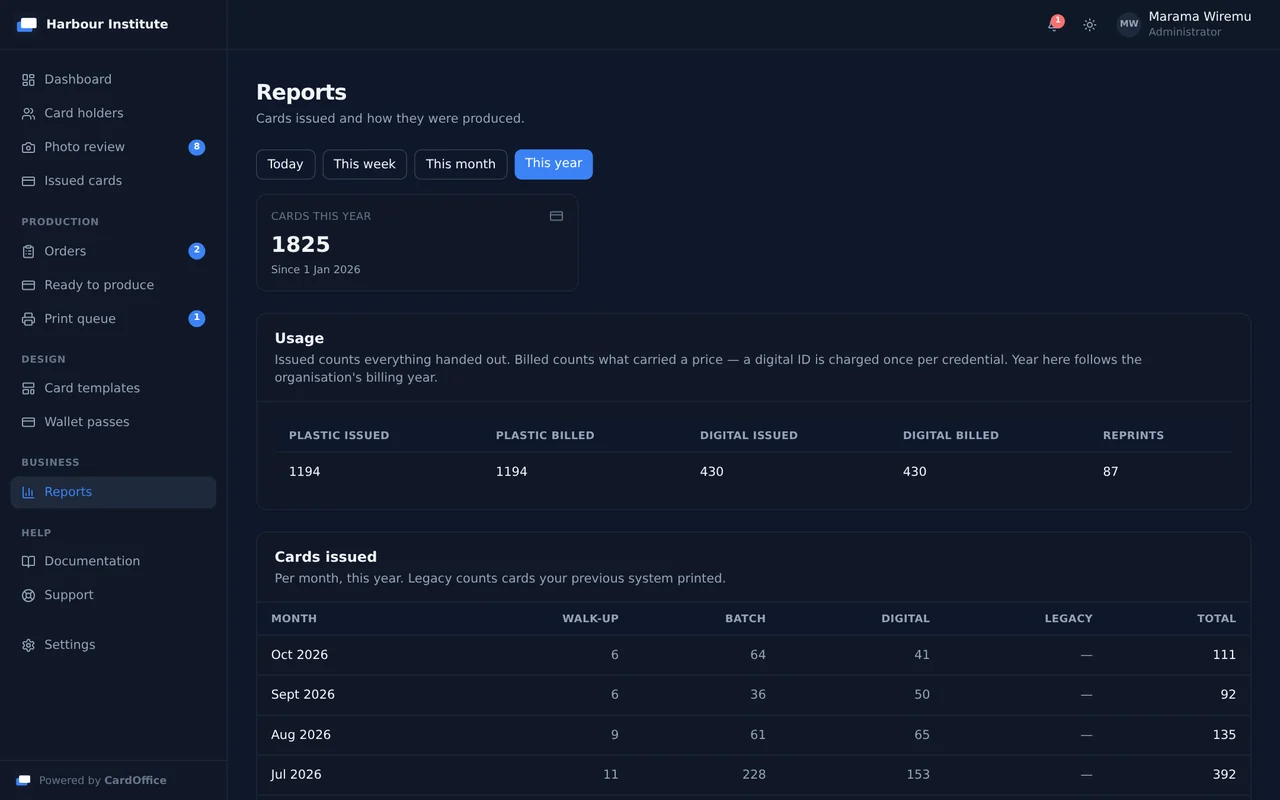
Cards issued today, this week, this month or this year, split by how they were produced and by who produced them. Nothing has to be exported and added up first.
On this screen
Entra ID and Google Workspace sync automatically over SCIM, straight into the cardholder roster. A new starter appears ready to be photographed, a name or department change flows through on the next provisioning cycle, and a leaver's card deactivates itself. No CSVs, no re-keying.
Send a photo invitation by email and the cardholder submits from wherever they are, phone, laptop, tablet, or a dedicated station in the card office. Distance and off-campus students stop being a special case. Automated quality checks catch a bad photograph before it is submitted. How the photo link works.
Staff approve or reject in a purpose-built queue, with the reason sent back to the cardholder so they can try again without a phone call.
Release a batch to the print agent, or issue one card at the counter. Ribbon levels, cleaning intervals and card stock are tracked as you go. Ordering finished cards from us instead gives you packing lists, tracking and an invoice per shipment or rolled up monthly.
Every card and wallet pass carries a verification code that checks against the live system, so anyone can confirm an ID is real and current in seconds. A lost or stolen card is revoked instantly, no reprint needed to shut off access.
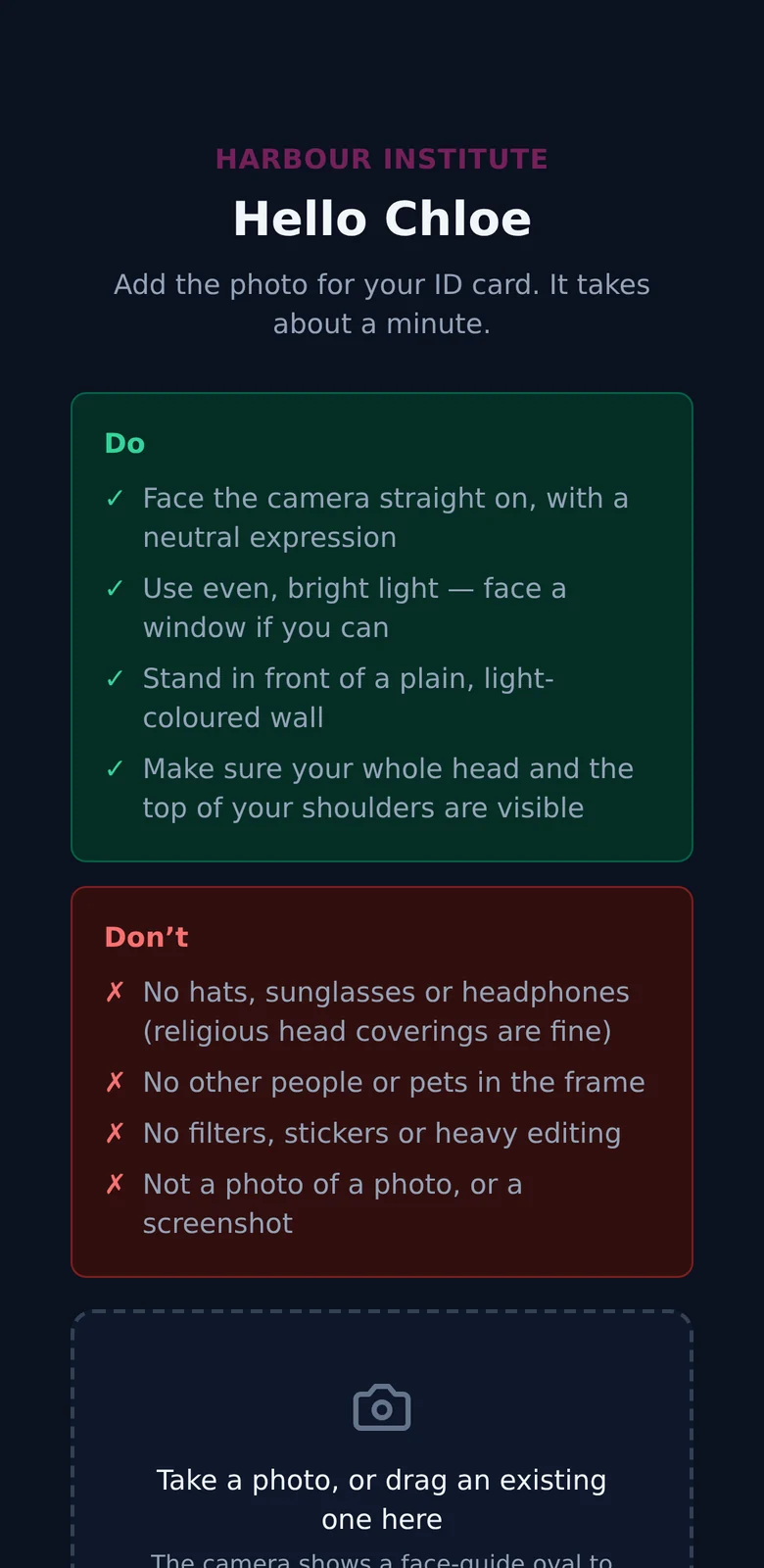
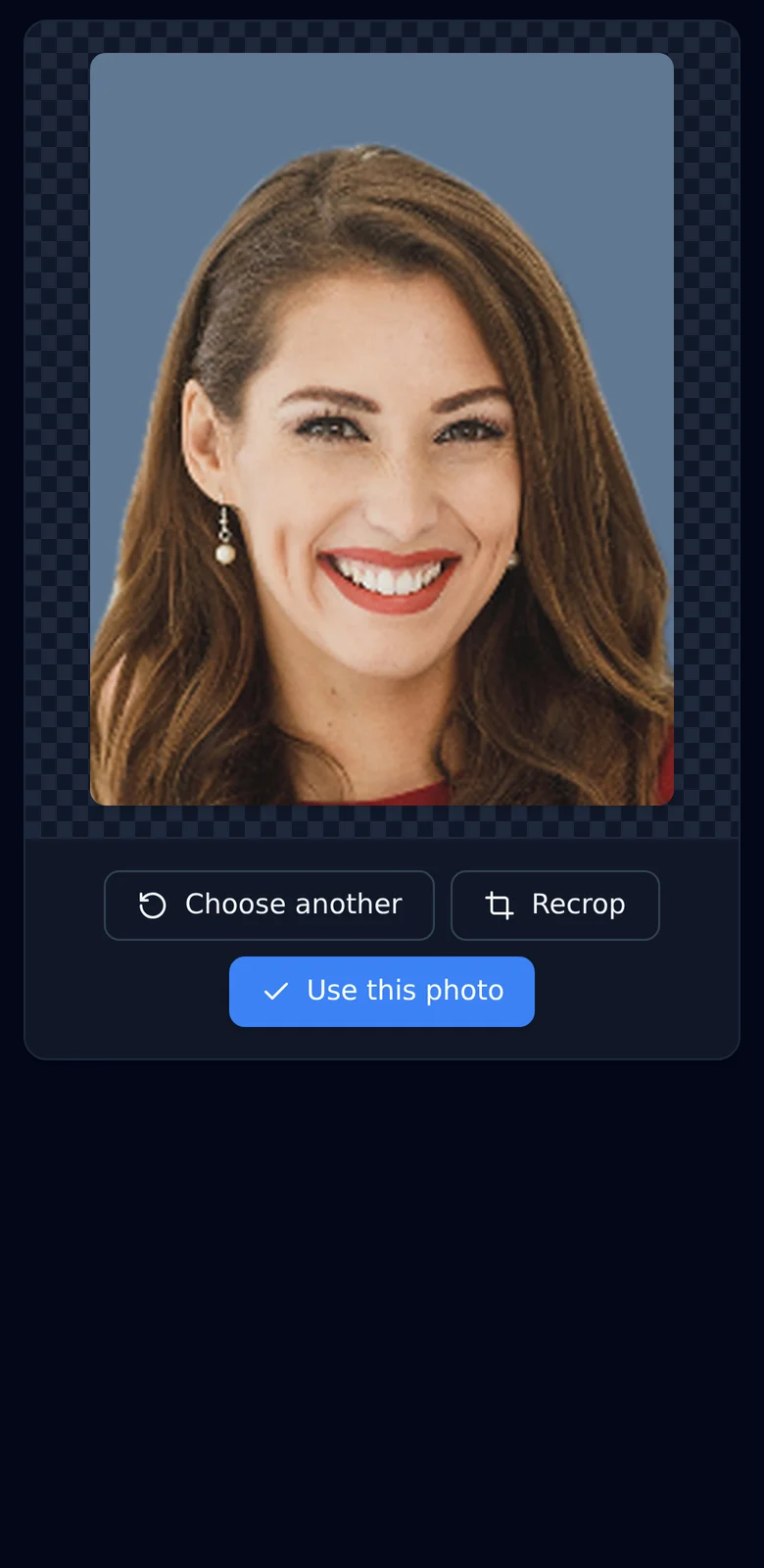
What the cardholder sees on their own phone. The portrait is a stock photograph of a model.
Distance students, remote staff and contractors never need to visit a counter. Email them a link and they photograph themselves on their own phone, wherever they are.
One click from a person's record, or select a whole intake and send them all at once. Anyone with no email address is skipped and counted, so the run does not stop.
The link opens a page that greets them by name, with no app, no account and no password. It shows what makes a good photo, lines the shot up with a face guide, and stays open for three days.
The photo is screened against the portrait rules as soon as it arrives, so one that is too dark or out of focus is flagged before anyone opens it.
Every photo sent by link is looked at by a person before it can go on a card. Reject one and the reason is emailed back, with a fresh link to try again.
From there the card is printed as usual, or the digital ID is emailed straight to their phone.
CardOffice runs in the browser, so the screens you use at a desk work the same way on a phone or an iPad, with nothing installed on the device. At an enrolment day, a reception desk or a site visit, one person can photograph somebody and send their card to the printer without going back to a PC.
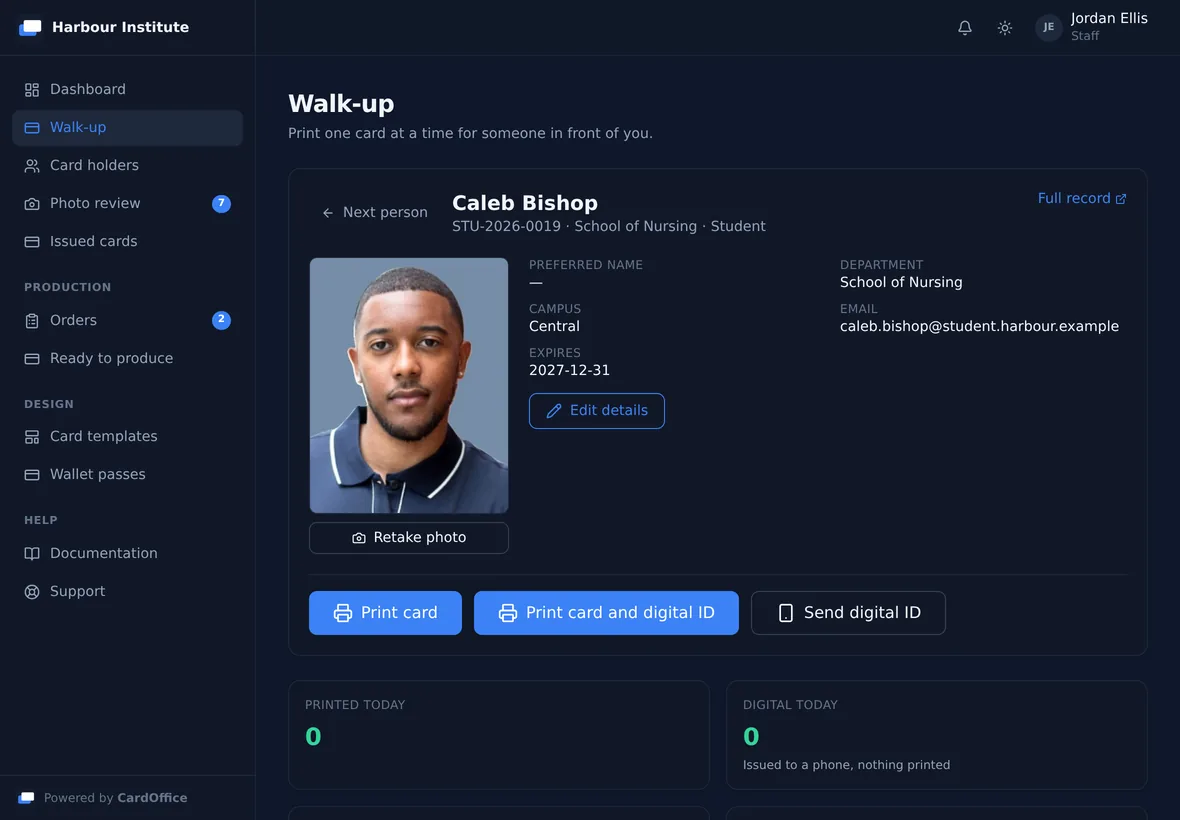
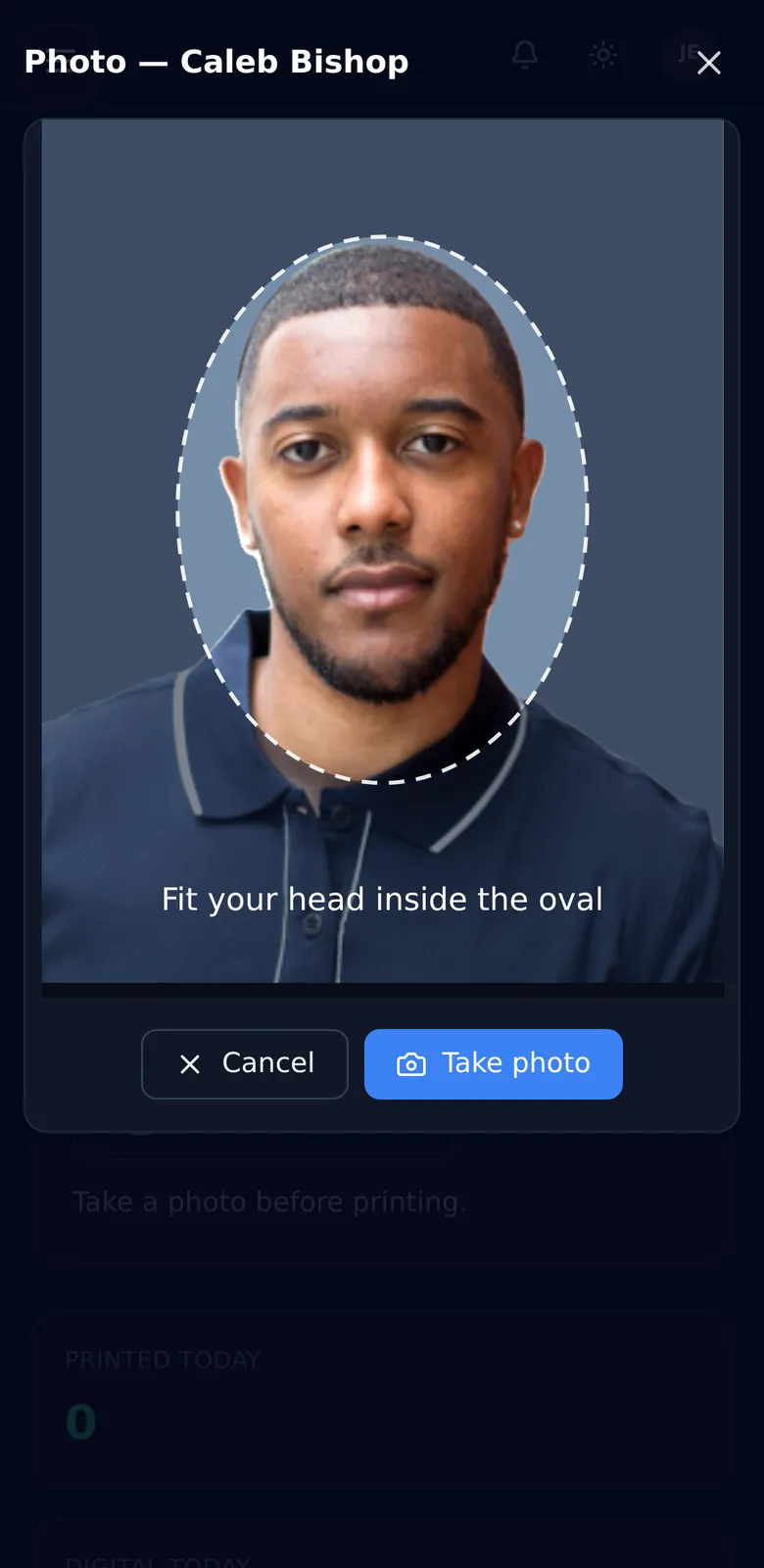
The counter screen at iPad size, and its camera at phone size, shown with a fictional institution. The portrait is a stock photograph of a model.
Search by name or ID number. Somebody who is not in the system yet can be added on the spot with a name and a type, and the rest filled in later.
Use the front or rear camera, with an oval guide to line the face up. The photo is checked against the portrait rules straight away. Staff took it with the person in front of them, so it is accepted without a second review.
The card goes to the card printer already set up for your organisation. There is no printer to find, add or choose on the device, and the same press can send a digital ID to the person's phone.
Your printers are set up once, by an administrator. A small agent on the PC beside each printer collects the job and prints it, so the phone or iPad never talks to the printer, needs no printer driver, and does not have to be on the same network. Staff can only send cards to their own organisation's printers, and a card cannot be printed until its photo is approved.
Issue, revoke and reconcile from the systems you already run, with delivery retried and recorded.
Every mutation records who did it, to what, and what changed. “Who revoked this card, and when?” has an answer.
OpenID Connect with Entra ID, Google Workspace or Okta, so staff use the credentials they already have and access ends when their account does.
Time-based one-time codes with backup codes, for the accounts that can issue and revoke credentials.
Photo retention periods are configurable per organisation, rejected photos are cleared sooner, and cardholder data requests are handled in the platform.
Nightly encrypted backups mirrored off-site, a live status page and a published 99.5% availability SLA, so reliability is something you can check. How it is run.
One. Cardholder records, photo collection and review, card design, ordering, print production, digital ID issuance, verification and billing are all the same platform, sharing one cardholder record and one audit trail.
Yes. Access is scoped by organisation and controlled by role, so a faculty or campus administrator sees their own people and nobody else's, while a central card office sees everything.
Revoke their card, their digital ID, or both. A revoked digital ID is struck through on the phone; a revoked card stops verifying immediately. Their record and history stay intact for audit.
Yes. It runs in the browser, so there is nothing to install. On a phone or an iPad you can find a person, take their photo with the device's camera and send their card to your organisation's card printer. The printer is driven by a small agent on the PC beside it, so the phone or tablet needs no printer driver.
Yes, cardholder records come from wherever your people already live: synchronised from Microsoft Entra ID or Google Workspace, driven through a REST API and webhooks, or read directly from a SQL Server, PostgreSQL or MySQL database by a small on-site sync agent. Spreadsheet import is always available. Single sign-on is supported through OpenID Connect.
Tell us how you issue cards today and we will show you what this looks like for your institution. No obligation, and no sales script.